Enable social login with Google for custom user groups
Summary
This article explains how to enable Google social login for custom user groups in targetconnect. By configuring Google as an authentication provider, users can register and log in using their existing Google accounts, simplifying access and reducing password-related issues.
Step-by-step instructions

Permissions required:
maintenance.view - Ability to view maintenance
maintenance.edit - Ability to edit maintenance
maintenance.groups - Ability to maintain groups
1. Configure Google as an authentication provider
- Navigate to Maintenance → Partner configuration.
- Locate the Social login section.
- Enter your Google OAuth key and Client secret in the respective fields.
- Click Save to complete the integration.

2. Enable social login for custom user groups
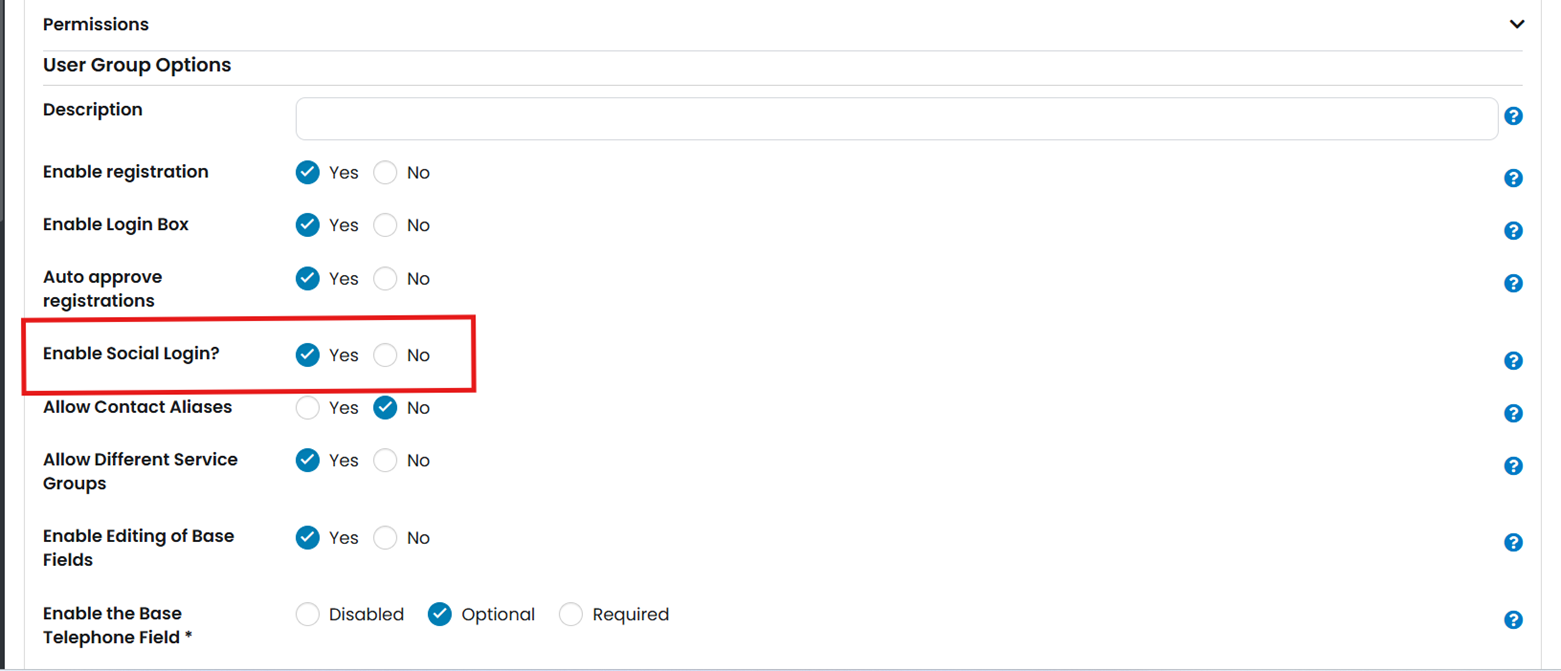
- Go to Maintenance → Groups → Custom user groups.
- Select the group you want to update.
- Find the Enable social login? option (default is No).
- Change this setting to Yes.
- Save your changes.
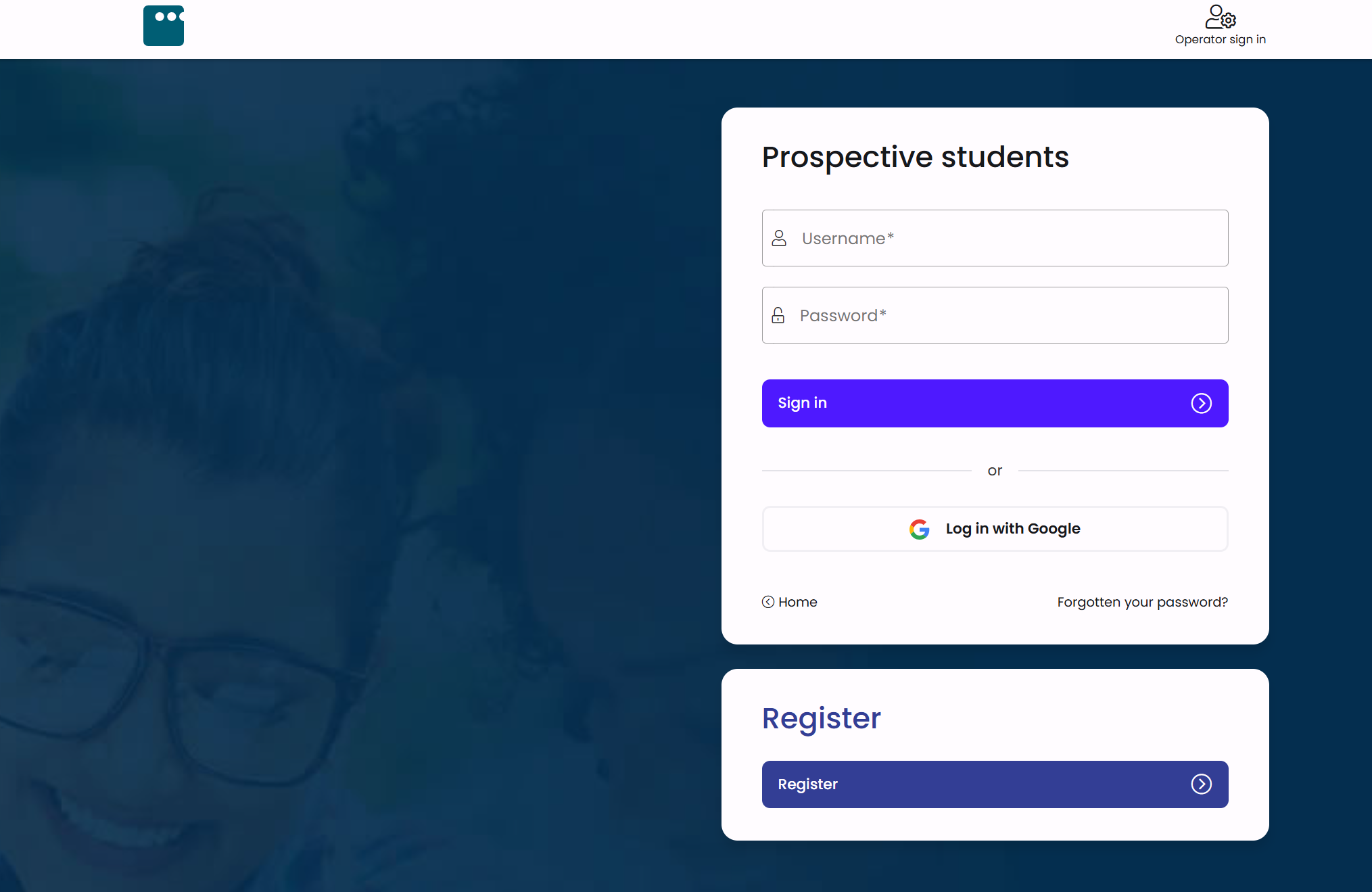
What changes after enabling social login
- A Sign in with Google button appears on registration and login pages for the selected custom user groups.
- Name and email fields are automatically populated during registration.
- Email addresses and usernames are locked for Google-authenticated accounts.
- Email verification is handled by Google, so no verification emails are sent when auto-approval is enabled.
- If you use custom registration forms, users must still complete them before accessing the platform.
Tips and best practices
- Test before rollout: Enable social login for a small group first to ensure everything works as expected.
- Communicate clearly: Inform users about the new option and its benefits to encourage adoption.
- Keep credentials secure: Store your Google OAuth key and Client secret in a secure location.